
 Delaware Department of Labor
For Delaware Paid Leave Employers and Third-Party Administrators (TPAs) filing quarterly Hours & Wage reports in LaborFirst. Steps 1–11 walk through the process in order; the Reference section at the end is for looking things up as needed.
Important — TPA client authorization: Proper authorization must be on file for an Hours & Wage report to be accepted and for the associated payment to post. Reports filed without authorization are rejected and payments suspend, causing significant delays. To request a client authorization report, email PFML@delaware.gov.
Employers enrolled in Delaware Paid Leave must file an Hours & Wage report every quarter detailing all wages earned and hours worked by each employee. These figures determine the employer’s total contribution due for the quarter and track each employee’s hours toward Paid Leave eligibility. Reports can be filed directly by the employer or by a TPA authorized to file on the employer’s behalf.
Reports and payments are due 30 days after the end of each quarter.
| Quarter | Period Covered | Report and Payment Due |
|---|---|---|
| Q1 | January 1 – March 31 | April 30 |
| Q2 | April 1 – June 30 | July 30 |
| Q3 | July 1 – September 30 | October 30 |
| Q4 | October 1 – December 31 | January 30 |
There are three ways to submit an Hours & Wage report:
| Option | Who can use it | Notes |
|---|---|---|
| Manual entry | Employers | Up to 1,000 employees. For later quarters you can copy names/SSNs forward from a prior quarter. Use Tab (not Enter) to move between fields; a wider monitor or adjusted zoom helps. |
| Electronic upload — CSV or XML | Employers & TPAs (single employer) | Recommended for larger employee counts. File must be 5MB or smaller; stay below ~10,000 employees for the best experience. |
| Bulk upload (TPA only) | TPAs | One CSV or XML file covering multiple employers/clients at once. One file per upload. See Step 8. |
Hours and Wage Files must be formatted following our template or they will be rejected:
Note: The CSV template is recommended over XML for most filers, especially if you use Excel — it’s easier to prepare and validate.
Delaware DOL accepts both CSV and XML, each carrying the same data. Both formats support single-employer filers and TPA bulk filers.
| Field | Format | Required? | Notes |
|---|---|---|---|
| Total Record Count | Numeric, 5 digits | Yes | Total wage records in the file; must match on every row. |
| Preparer Legal Name | String, 200 char | TPA only | No special/accented characters. Do not include commas or hyphens. |
| Preparer FEIN | String, 9 digits | TPA only | Include leading zeros; no hyphens. |
| Employer Account Number | Numeric — see note below | Yes | Your LaborFirst account number — no leading zero, no letters/spaces. |
| Year | Numeric, 4 digits | Yes | Minimum value 2000; must be valid for the employer. |
| Quarter | Numeric, 1 digit | Yes | 1–4; must be valid for the employer. |
| Social Security Number | String, 9 digits | Yes | No hyphens. First 3 digits can’t be “000”, “666”, or “900”; can’t be all zeros/consecutive digits. Use 999999999 for a person authorized to work but without an SSN yet. No duplicate SSNs in a file (except 999999999). |
| First Name | String, 40 char | Yes | At least 2 letters; no numbers, commas, or special characters. Enter “FNU” if no first name. |
| Middle Initial | String, 1 char | Optional | Single capital letter, or leave blank. |
| Last Name | String, 80 char | Yes | At least 2 letters; no numbers, commas, or special characters. Enter “LNU” if no last name. |
| Employer Contribution % | Numeric, 3 digits | Yes | Whole number, 50–100. No “%” sign or decimals. |
| FICA Wages | Numeric, 16,2 | Yes | Delaware in-state wages after FICA rules. Zero is acceptable (0.00). No commas or “$”. |
| Combined Out of State Wages | Numeric, 16,2 | Yes | Zero is acceptable (0.00). No commas or “$”. |
| Total Hours | Numeric, 4 digits | Yes | 0 – 2,200 for the quarter. |
| Weeks Worked | Numeric, 2 digits | Yes | Cannot exceed 14 per quarter. |
| Adjustment Code | String, 3 char | No | Blank = original filing. See adjustment codes below. Leave blank for a standard original filing. |
| Code | Meaning |
|---|---|
| (blank) | Original filing |
| UP1 | Update due to incorrect name |
| UP3 | Update due to incorrect wages, hours or weeks worked |
| DEL | Delete a record entered in error |
| ADD | Add an employee to a previously filed quarter |
The system will not accept an original filing and an adjustment for the same SSN/quarter/year in the same file.
<Employer> element must have wage records underneath it (no empty employer blocks); structure follows Employer > Employees > Report details, per the DPL XSD schema.DEWH_EMP_ACCNO_MMDDYYYY_HH24MISS.csv; TPAs — DEWH_TPA_ACCNO_MMDDYYYY_HH24MISS.csv.If you have real wages to report, skip this step and go to Step 7. If you have no wages to report for a quarter, file a “zero wage report” as a single employee record with these exact values:
| Field | Value |
|---|---|
| Record Count | 1 |
| Preparer Name / FEIN | Blank, or TPA name/FEIN if filed by a TPA |
| Employer Account Number | Your account number |
| Year / Quarter | Your liability year/quarter |
| SSN | 777777777 |
| First Name | FNU |
| Middle Initial | M |
| Last Name | LNU |
| Employer Contribution %, FICA Wages, Out of State Wages, Total Hours, Weeks Worked | 0 |
| Adjustment Reason | Blank |
Don’t confuse the two placeholder SSNs: 777777777 is used only for the single zero-wage-report record above. 999999999 is used within a normal report for an individual employee who is authorized to work but doesn’t yet have an SSN.
Before submitting to LaborFirst, run your file through this pre-check tool to catch formatting problems locally — note that this is not an official LaborFirst resource; its an unofficial helper built to catch the same issues described in the Fix any errors step below. This checker only works with CSV files, it does not check XML files.
We’ve created a tool you can use to pre-check your file — Hours-Wage-File-Checker.html.
Note: The checker can only reliably check files that follow our template exactly.
This tool is a pre-submission aid only — passing every check here doesn’t guarantee LaborFirst will accept the file. Always confirm the file uploads successfully in the portal.
Some cases that might allow your file to pass the checker, but fail in LaborFirst:
Once you have checked the file, and you feel confident it will pass, you are ready to Submit. From your Account Summary, select the “File Quarterly Report” action item, then “File Report” for the correct quarter/year.
TPAs can file Hours & Wage reports for multiple employer clients in a single upload. Required authorization types (assigned by each employer when creating the TPA relationship): File/Amend Paid Leave Reports (files quarterly reports on behalf of the employer) and/or Administrator (full access to create, view, and manage records on the employer’s behalf). One file is allowed per upload, and Delaware DOL typically takes 2–3 business days to process a submitted bulk report — you’ll be notified by email either way.
Email pfml@delaware.gov with subject line: TPA Entity Relationship Report Request: [your organization’s name] (body can be blank). PFML responds within 3 business days with an Excel attachment listing your employer relationships — this goes to the contact email on your LaborFirst account, which may differ from your own inbox.
Open the Excel file, select cells A1:J1, and apply Filter (Home tab → Sort & Filter → Filter) to review each column. Only include employers in your submission where:
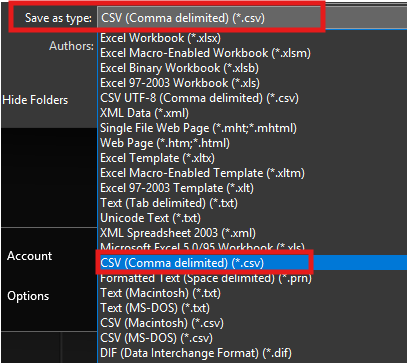
Use the CSV template, delete the sample data rows (keep the header row), and paste in your data using the column order in Step 5. Save exclusively as CSV (Comma Delimited) (*.csv) — not “CSV UTF-8,” “CSV (Macintosh),” or “CSV (MS-DOS).” Then:
Filing as an employer (not a TPA)? Leave both the Preparer Legal Name and Preparer FEIN fields blank in your submission.
Reviewing errors directly in LaborFirst (click”View Errors” on the failed upload) is the recommended way to troubleshoot a rejected file — TPAs also receive an email listing the specific errors. During manual entry, a red dot marks fields with errors. The most common issues:
| Error | Cause / Fix |
|---|---|
| File format | Must be CSV or XML. If Excel added a blank row when you edited a CSV, copy the data into a fresh CSV rather than re-saving the same file. |
| Incorrect CSV headers | Required headers are missing — use the official header template. |
| Invalid Employer Account Number | Must match a registered LaborFirst account. |
| Invalid SSN | Must be exactly 9 digits, a valid SSN, no dashes/spaces, no duplicates (except 999999999), and any leading zero must be preserved (format the column as text). |
| Invalid First/Last Name | At least 2 characters; cannot contain an apostrophe. |
| Invalid Year | Numeric, between 2000–2050, and valid for the employer. |
| Invalid Quarter | Numeric, 1–4, and valid for the employer. |
| Invalid FICA / Out of State Wages | Must be positive and in valid currency format (no “$”, no commas). |
| Invalid Total Hours | Numeric, 0 – 2200 |
| Invalid Weeks Worked | Numeric, must be between 1 and 14. |
| Missing required field | Commonly Employer Account Number or Quarter; TPAs must also supply Preparer FEIN and Preparer Name. |
| Comma in a business name | Invalidates the CSV (e.g., “Paychex, Inc.”). Remove commas from any string field. |
You’ll receive an email with an attached file identifying the specific cells that caused the failure. Correct those cells and resubmit — repeat as needed. For hands-on help: call the Support Desk at (302) 761-8375 or email PFML@delaware.gov.
Before resubmitting, double-check: correct permissions for every employer in the file; only “Approved”/”Liable”/”Not Filed” employers included; official CSV template used and saved correctly; Record Count sequential with no blank rows; all field formats from Step 5 followed; file under 5MB; logged in with Chrome or Edge only; filed in the correct liability period.
Once an Hours & Wage report is accepted, an invoice is generated for the contribution due. Payments are made through the LaborFirst account, not by any other channel.
If you need to make changes to a wage report, you can use the “Amend Wage Report” workflow in LaborFirst. A wage report amendment is a formal correction to a quarterly wage report that has already been submitted through LaborFirst.
Tips that don’t map to one specific step:
| Question | Answer |
|---|---|
| Who must submit Hours & Wage reports? | Employers enrolled in Delaware Paid Leave, immediately. Approved private-plan employers aren’t required until April 30, 2026. Exempt employers don’t need to file. |
| How often are reports due? | Quarterly, 30 days after quarter-end (see Step 1). |
| What are my submission options? | Manual entry (up to 1,000 employees), electronic CSV/XML upload, or a zero wage report if no wages were paid. |
| Can a TPA upload in bulk? | Yes — bulk upload of Hours & Wage reports is available for TPAs with the correct authorization. |
| Will there be late-filing penalties? | None applied to Q1/Q2 2025 filings and payments, as an adjustment period for the new system. See the flag in Step 1 — current policy is unconfirmed. |
| What new TPA authorization types exist? | “File/Amend Paid Leave Reports” (file quarterly reports on the employer’s behalf) and “Paid Leave Make Payment” (make payments on the employer’s behalf). |
| Where can I view submitted report data? | The Account Division Summary’s “Account Periods” section — select a period to view what was submitted. |
| How many files can a TPA upload at once? | One file per upload. |
| What’s the standard processing time for a bulk report? | 2–3 business days; contact PFML@delaware.gov if it runs longer. |
| Where can I find the reporting template? | On the LaborFirst Employer or TPA Resources page (linked in Downloads below). |
Spanish-language versions of most guides above are available on the original Employer and TPA Resources pages.